How to Submit a Progress Update
Progress Updates allow users to share achievements, updates, or supporting evidence related to Focus Areas, which represent key initiatives or priority areas defined by the organisation. These updates help teams highlight milestones, share progress, and keep others informed about ongoing work.
Teams typically submit progress updates to document progress on initiatives, share achievements, or provide supporting evidence for activities related to a Focus Area.
A progress update is shared as a post in the platform and may include text, images, videos, links, locations, and tags.
Submitting Updates from Focus Areas
In some cases, progress updates may be submitted in response to a Signal Update Request associated with a Focus Area.
When selecting a Focus Area, the platform may display any outstanding Signal Update Requests related to that area. Selecting a request opens the Create post window with the Focus Area already selected, allowing you to enter your update and publish the post.
You can then complete the post by following the steps described in Post a Progress Update.
Before You Begin
Before submitting a progress update, make sure that:
-
You have access to the Activity feed.
-
You know which Focus Area the update relates to.
-
Any supporting materials (images, links, or videos) are ready to include in the post.
Post a Progress Update
You can share updates with your organisation or specific teams directly from the activity feed.
To submit a progress update:
-
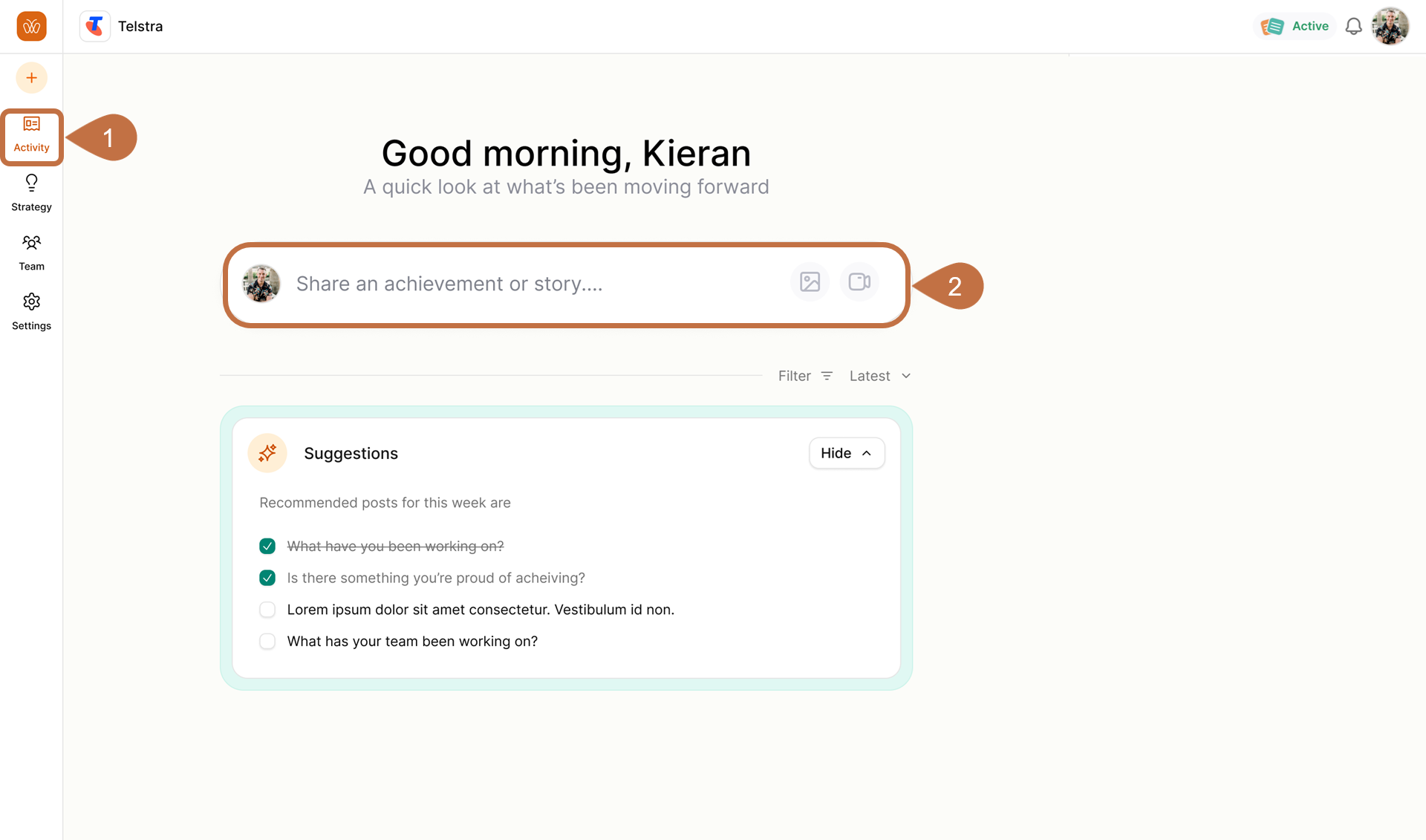
Go to the Activity section from the main navigation menu.
-
In the update field at the top of the feed, select Share an achievement or story.
-
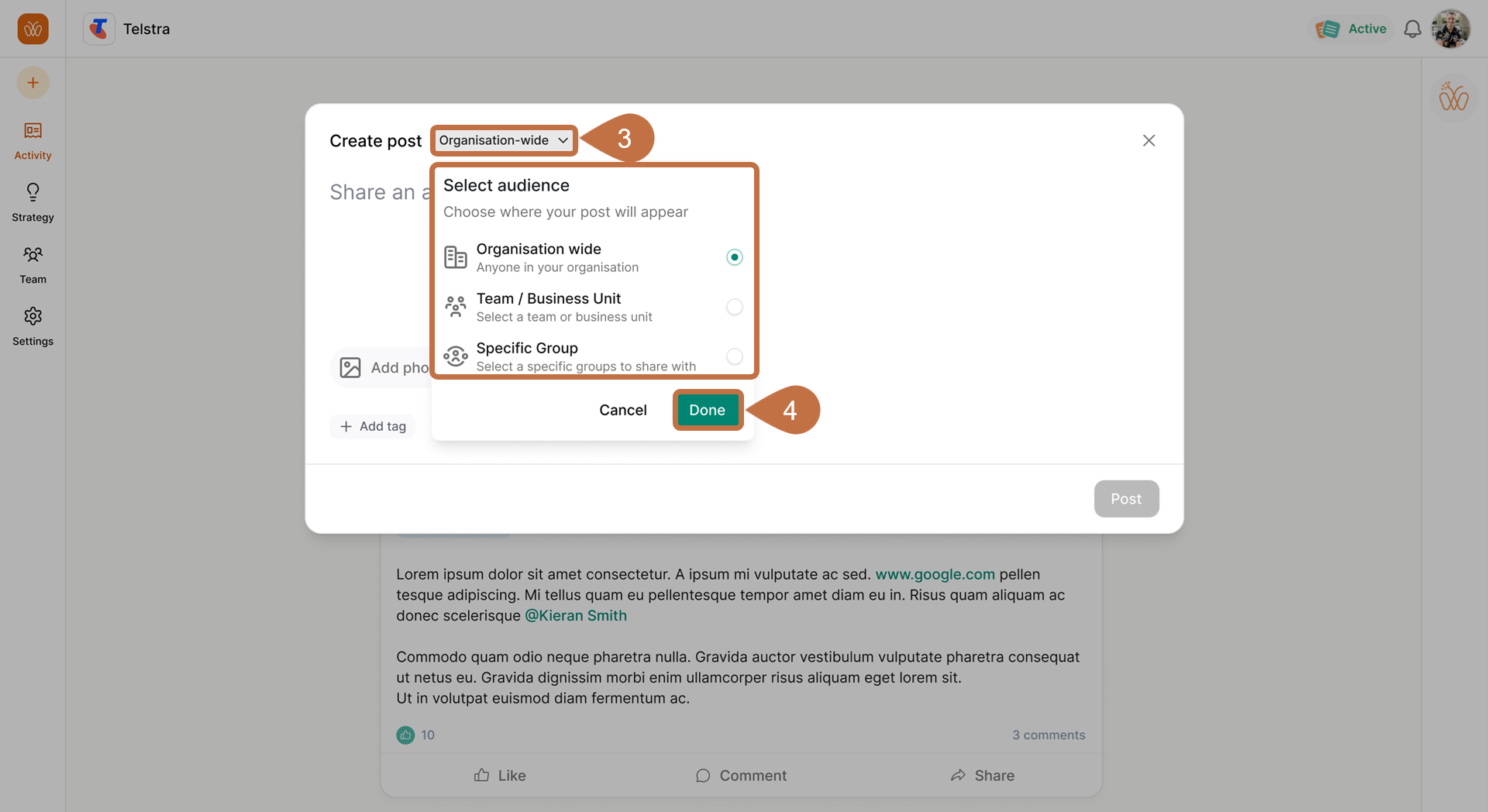
In the Create post window, select the audience using the audience dropdown.
You can choose:
- Organisation wide
- Team / Business Unit
- Specific Group
Choosing the Right AudienceOnly users included in the selected audience will be able to see the update after it is published.
-
Select Done to apply the audience selection.
-
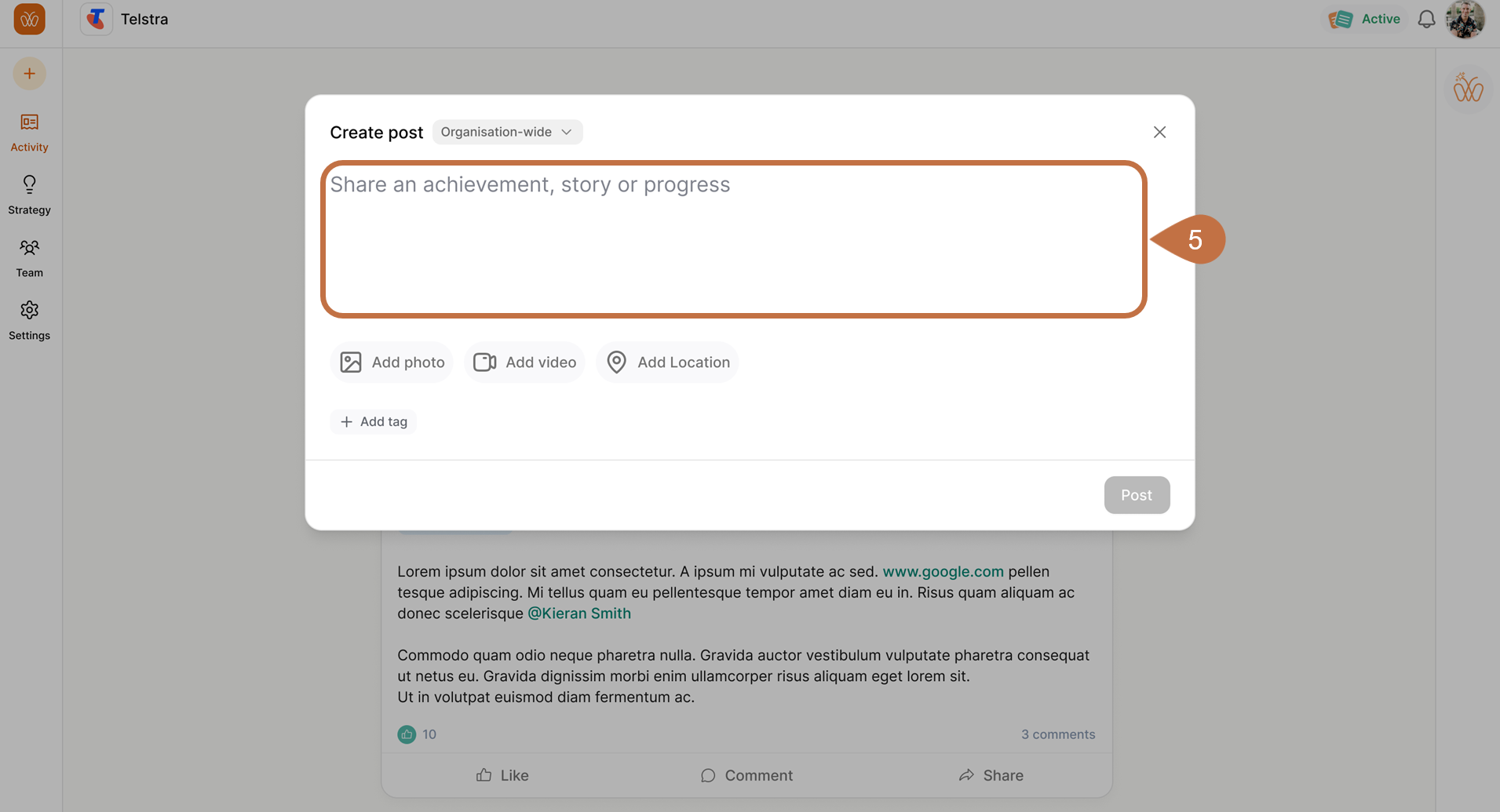
Enter the details of the update in the text field using clear and concise descriptions so other users can easily understand the progress being shared.
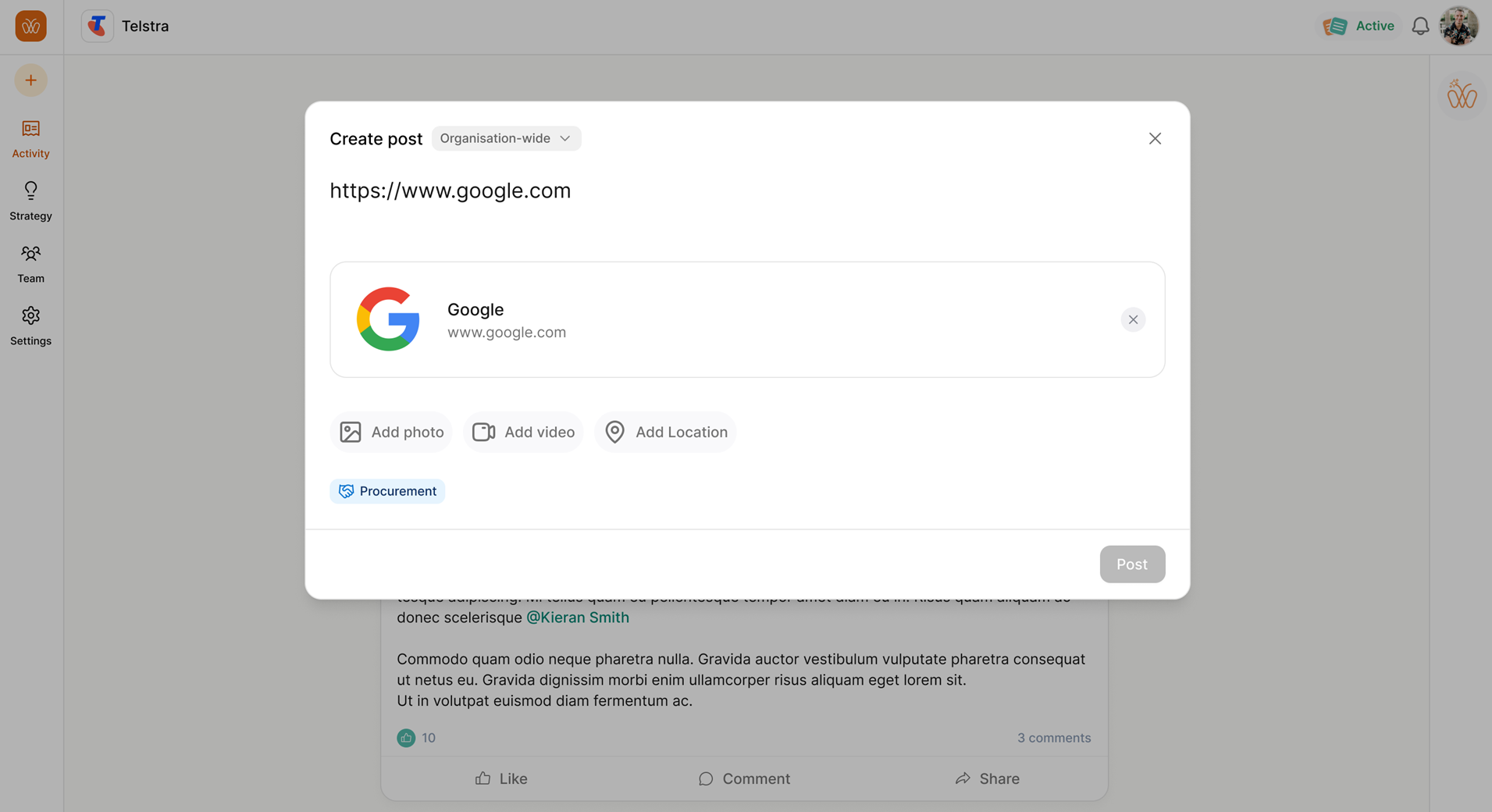
You can also paste a link into the same text field to automatically generate a preview.
-
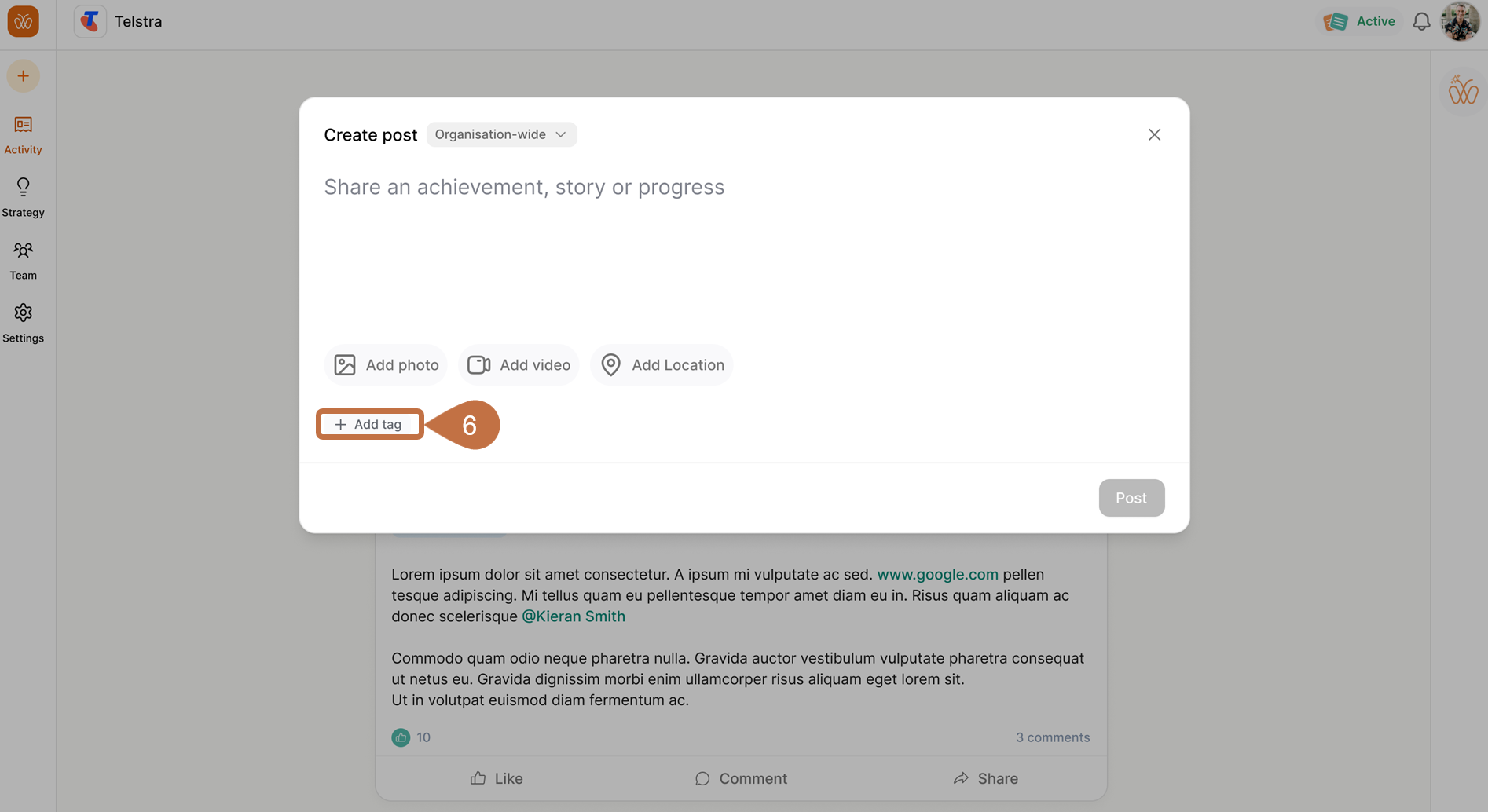
(Optional) Select + Add tag to categorise the update. Tags help organise posts and make them easier to find later. Focus Areas can also be applied as tags. Selecting a Focus Area tag links the update to a specific initiative or priority area within the organisation.
-
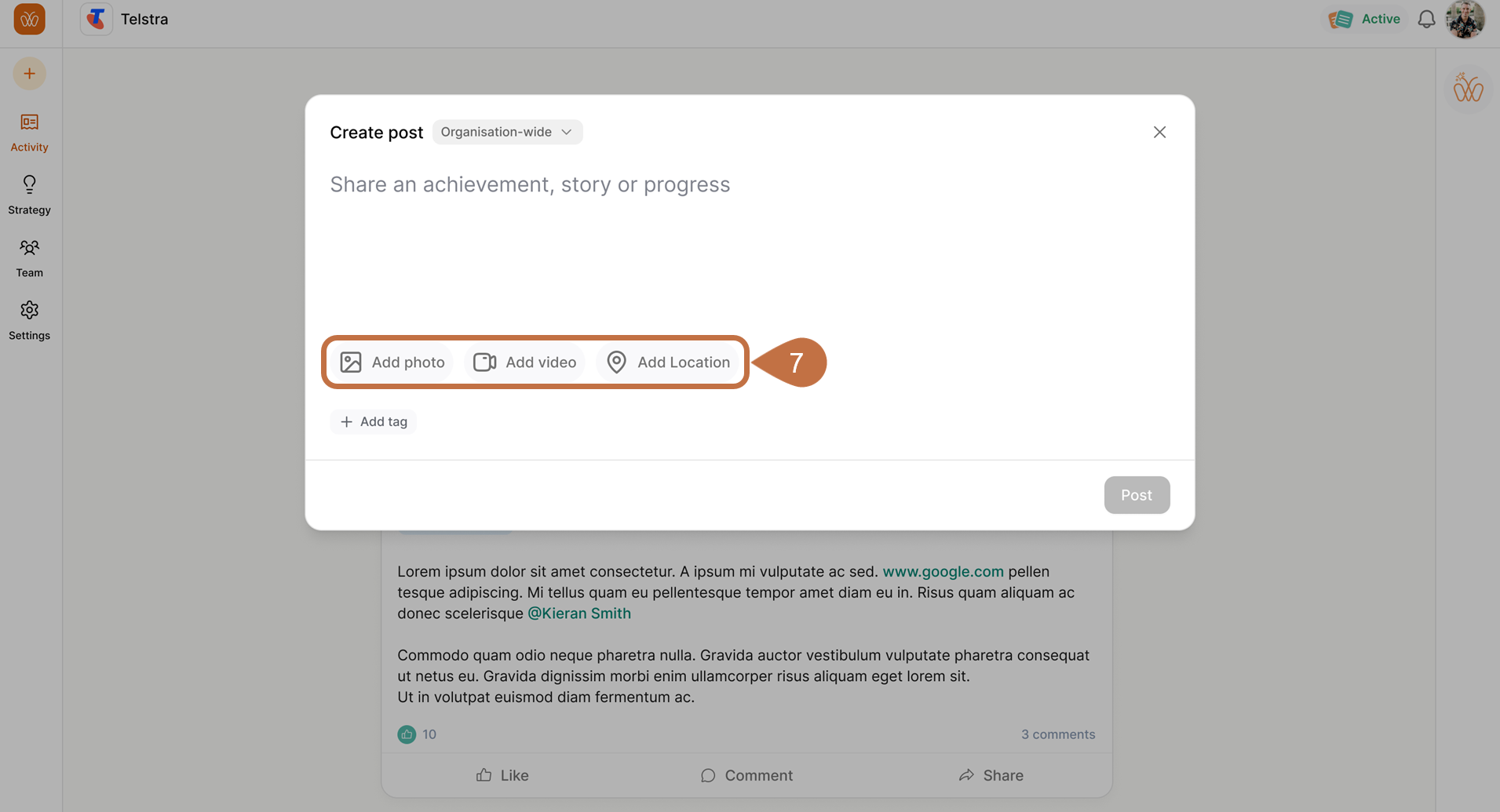
(Optional) Add supporting content such as images, videos, or a location to provide additional context. You can include multiple types of media in the same post.
-
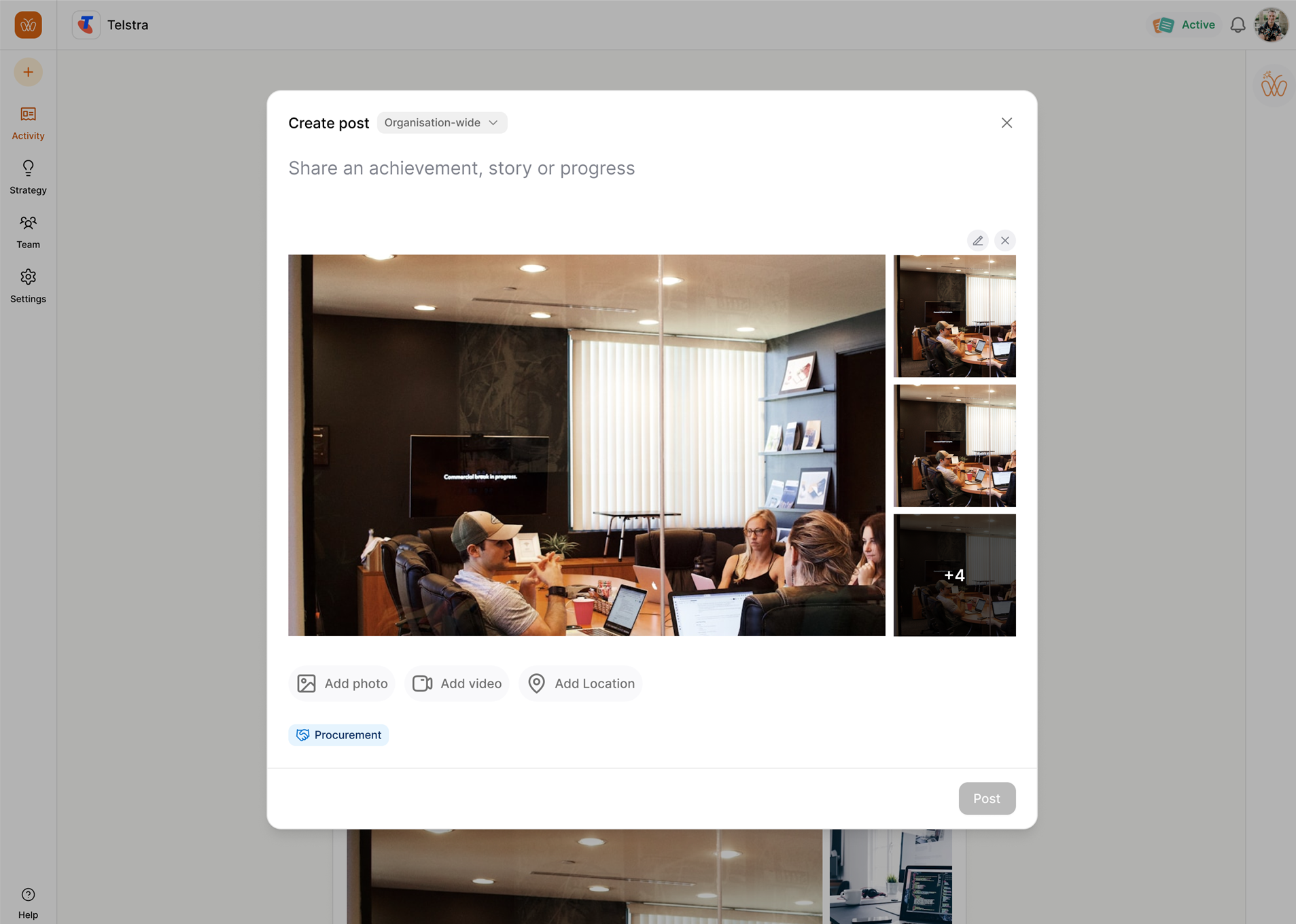
Select Add photo to upload images.
-
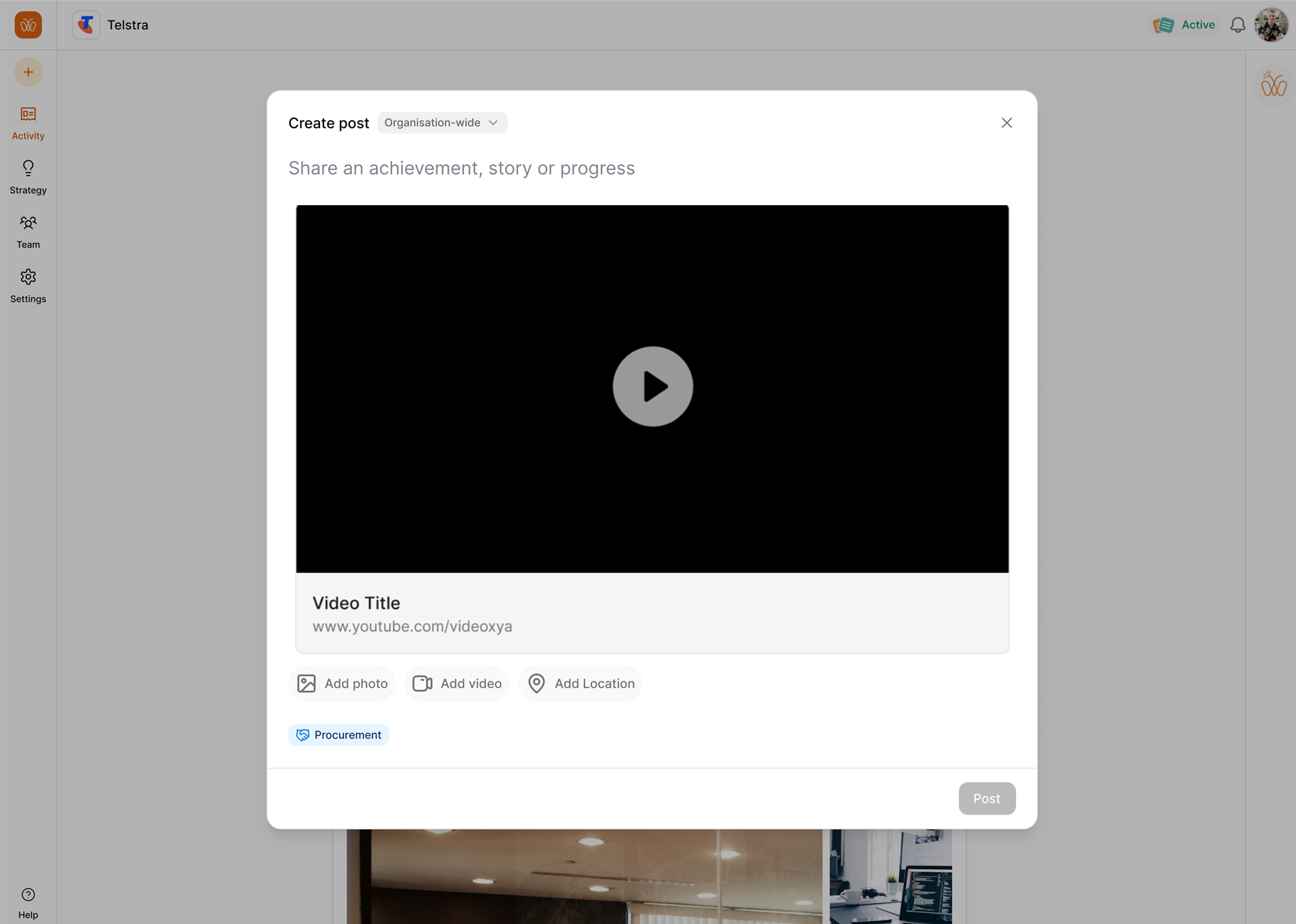
Select Add video to include a video.
-
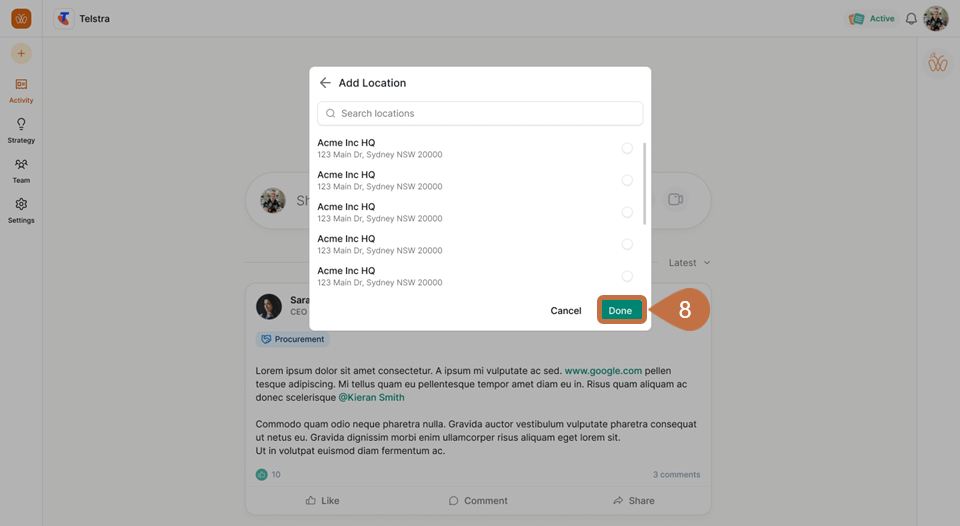
Select Add Location to associate the update with a specific location.
-
-
Select Done to finish adding the media or location to the post.
-
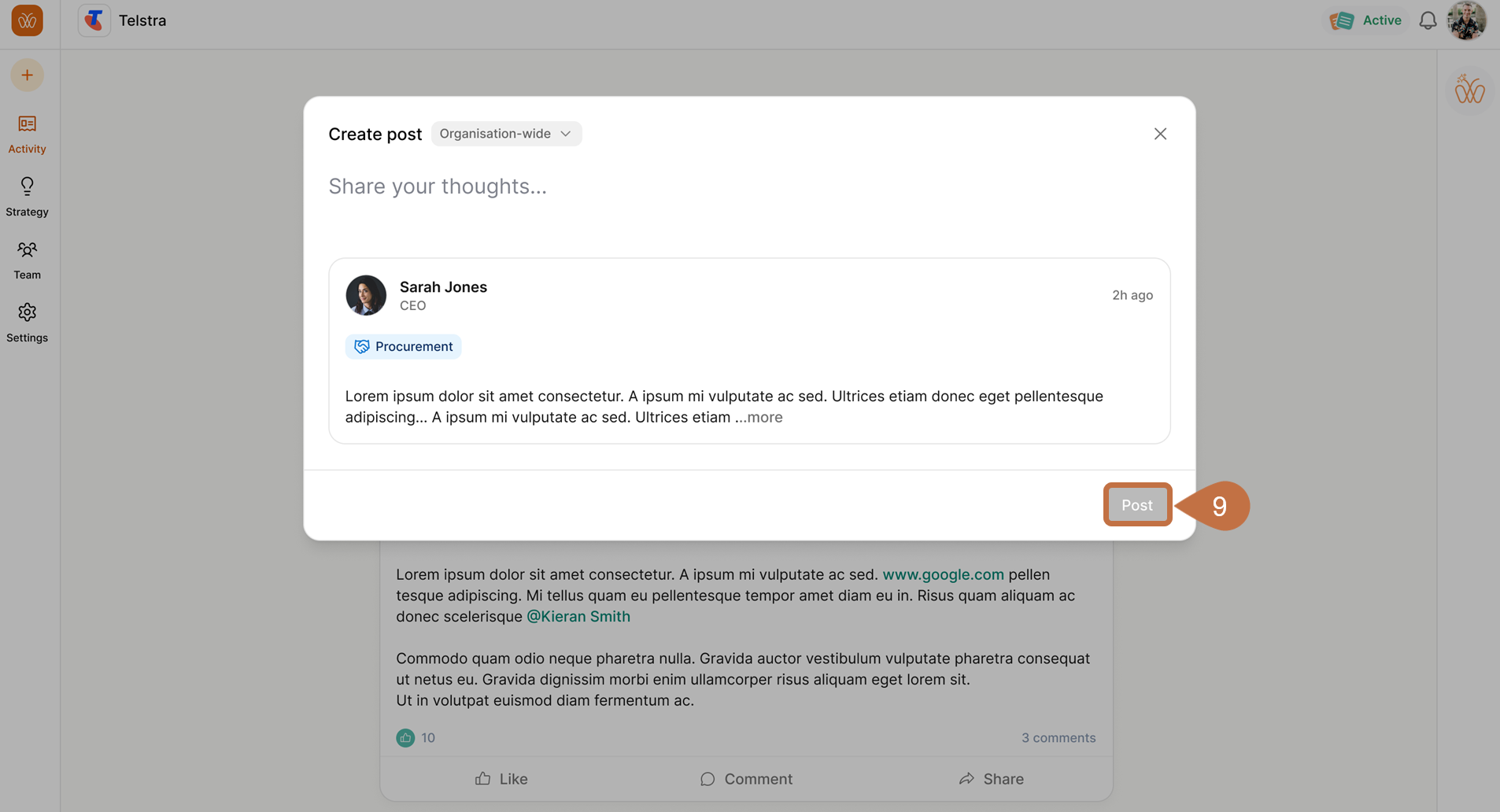
When the update is ready, select Post to publish it to the feed.
After publishing a progress update, the post becomes visible in the activity feed based on the audience you selected. Other users can interact with the post by commenting, reacting, or sharing related updates.
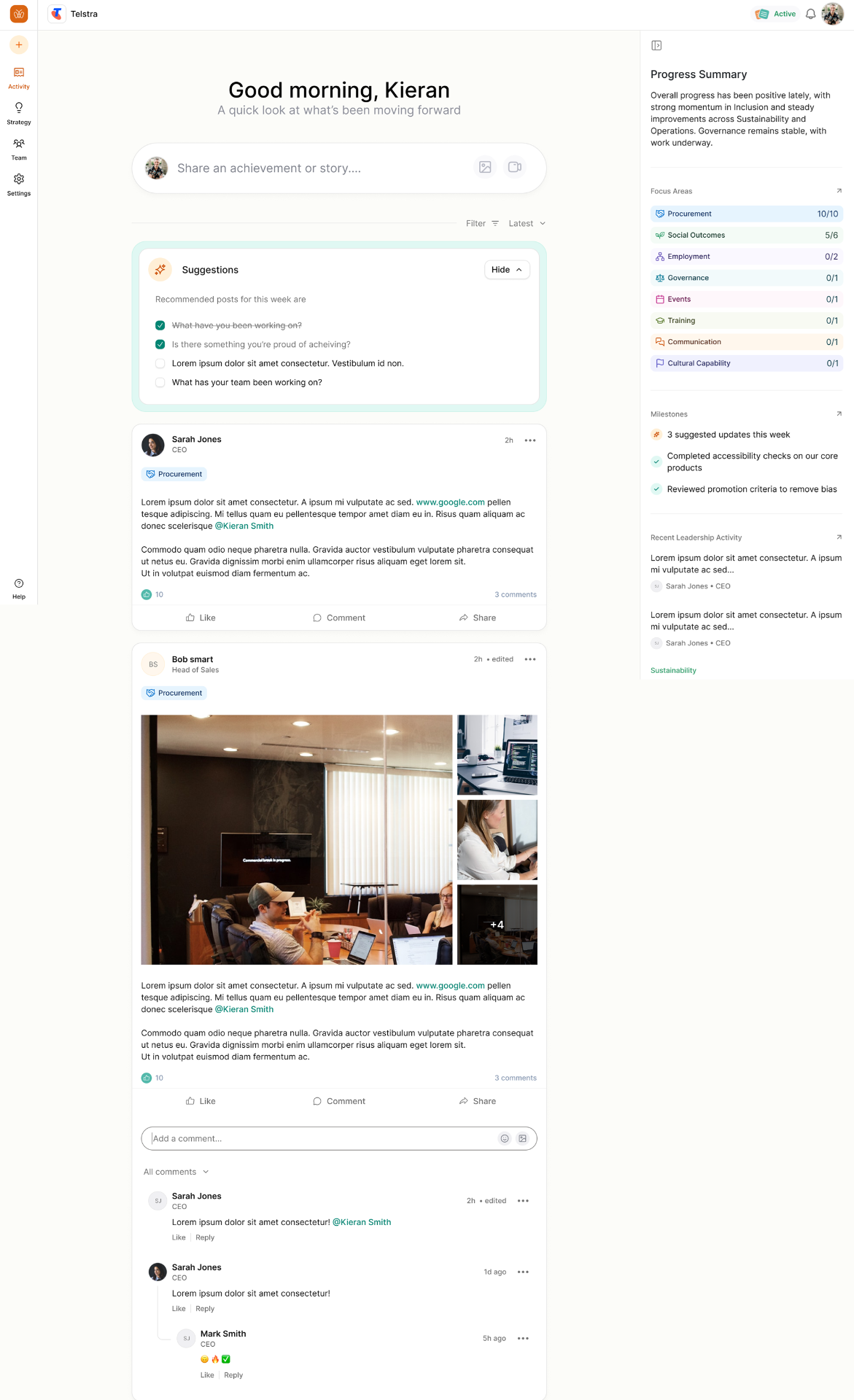
Associating updates with Focus Areas helps track progress across initiatives and maintain visibility on ongoing work.
Next Steps
After submitting a progress update, you may want to continue managing or reviewing activity in the platform.
You can learn more about related actions in the following articles:
-
View and Filter the Activity Feed: Learn how to find updates by Focus Area, team, or time period.
-
Add and Manage Focus Areas: Understand how Focus Areas help organise initiatives and track progress.
-
Interact With Posts in the Activity Feed: See how to comment on posts, react to updates, and engage with other users.
-
Edit or Delete a Post: Update or remove a post if changes are needed after publishing.